
Quick Answer: A Navisworks tutorial for beginners walks a new user through installing Navisworks Manage, reading the interface, importing files from other software, and using core review tools like clash detection and viewpoints.
It works by combining models from different disciplines into one federated view. Businesses use it to catch design conflicts before construction starts, not after.
Why a Navisworks Tutorial for Beginners Should Start With the Basics
Most people open Navisworks expecting it to behave like software they already know. It does not. Navisworks is a review and coordination tool, not a modeling tool. That distinction shapes everything about how it should be learned.
A good Navisworks tutorial for beginners teaches sequence before features. You cannot run a useful clash test on a model that was appended incorrectly. You cannot navigate a federated model whose structure you do not understand yet.
Treating It Like Modeling Software Causes Real Problems
New users sometimes try to edit geometry inside Navisworks or expect design changes to carry back to the source file. Neither happens. Navisworks reads what it is given. It does not write back to Revit, AutoCAD, or any other authoring tool.
That single misunderstanding causes more early frustration than any interface confusion does. Once it clicks, everything else about the software makes more sense.
Getting Navisworks Installed and Picking the Right Version
Navisworks comes in three forms, and picking the wrong one is a common first mistake. Autodesk offers Navisworks Manage, Navisworks Simulate, and Navisworks Freedom.
Freedom is free. It opens and views published NWD files but cannot append multiple formats or run clash detection. Manage is the full paid version, built for active coordination across teams.
| Version | Cost | Appends Multiple Formats | Runs Clash Detection |
| Freedom | Free | No | No |
| Simulate | Paid | Yes | No |
| Manage | Paid | Yes | Yes |
Which Version Actually Fits Your Role
If your job is reviewing a federated model someone else built, Freedom often covers it. If your job is building that federated model, running clashes, and generating reports, you need Manage. Simulate sits in between, useful for scheduling and visualization work without full clash detection.
System Requirements Worth Checking First
Navisworks handles large federated models, so a machine with limited RAM will struggle once several disciplines are appended together. Minimum and recommended specs change with each release, so check Autodesk’s current system requirements page before installing rather than assuming last year’s numbers still apply.
Licensing Is Usually Subscription-Based, Not a One-Time Purchase
Autodesk sells Navisworks Manage as a subscription, often bundled inside an AEC Collection rather than sold entirely on its own. Businesses evaluating cost should factor in the collection price, not just a standalone Navisworks license, since the standalone option is not always the cheaper route once other Autodesk tools are already in use.
The Navisworks Interface, and What Trips Up First-Time Users
The Navisworks interface looks dense the first time it opens. There is a lot on screen at once, and none of it is labeled the way AutoCAD or Revit labels things.
The Selection Tree sits on one side, showing every object in every appended file. The Properties window sits nearby, updating based on whatever is selected. The viewport takes up the center, and that is where the 3D model lives.
The Selection Tree and Properties Window Work Together
Clicking an object in the Selection Tree highlights it in the viewport and populates the Properties window with its data. This link is how most troubleshooting happens. A clash result means little without checking which object, and which properties, sit behind it.
The Ribbon Is Organized by Task, Not by Tool Type
Unlike some design software, the Navisworks ribbon groups commands by what a person is trying to do, review, animate, or analyze, rather than by category. This confuses beginners coming from other Autodesk products who expect tools grouped by discipline instead.
Saved Viewpoints Are Not Optional
New users often skip saving viewpoints because it feels like an extra step. It is not extra. Viewpoints document what was found. Without them, a clash report is just a list nobody can retrace back to its exact location in the model.
Importing and Appending Files Without Breaking the Model
Appending is where most beginner frustration actually starts. Navisworks does not import files the way a person might expect. It converts them into its own format and stacks them together.
Supported formats include DWG, RVT, IFC, SKP, and several others depending on which plugins are installed. Most AEC teams end up appending a mix of Revit and IFC files from different disciplines into a single federated model.
Append Versus Merge, and Why It Matters
Appending adds a new file as a separate item in the tree. Merging combines geometry from multiple files into a single item. For coordination work across disciplines, append almost always wins because it keeps each model traceable back to its source.
This is the trade-off that catches most beginners. Append suits ongoing coordination across teams. Merge suits a one-time visualization where source tracking no longer matters, such as a single walkthrough render that will not be revisited later.
File Naming Discipline Starts Before You Open Navisworks
If architectural, structural, and MEP files are not named consistently before they reach Navisworks, the selection tree becomes unreadable fast. This is a project management problem, not a software problem, and it needs solving upstream, before appending even begins.
Moving Around the 3D Model
Navigation in Navisworks borrows a bit from gaming, and a bit from CAD software, and that hybrid feel throws off beginners who expect one or the other.
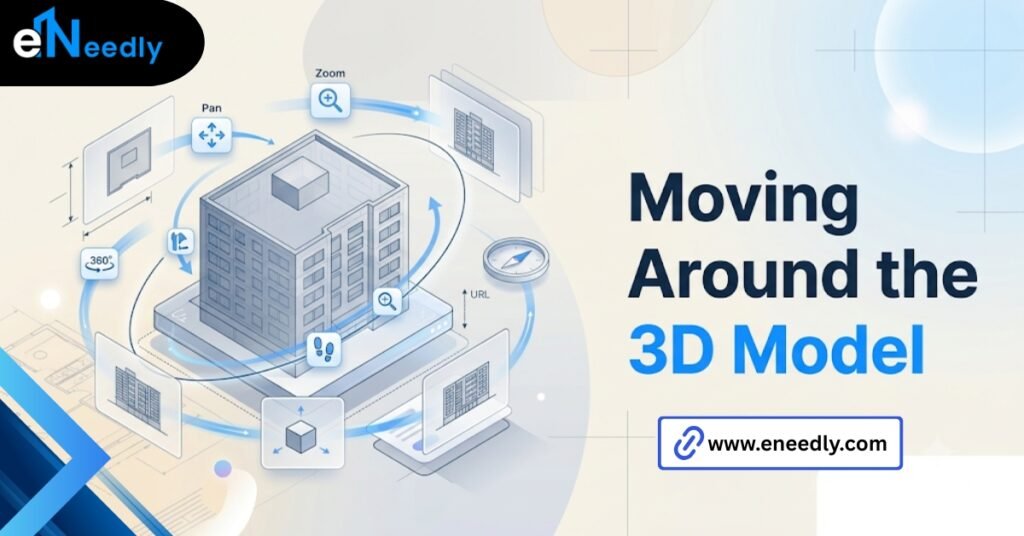
Orbit, pan, and zoom work with mouse combinations similar to other 3D tools. Walk and fly modes move through the model at a set height, useful for spotting clearance issues a top-down view would miss entirely.
Third Person Mode Deserves More Attention Than It Gets
Third person mode places a small avatar in the model, so scale and clearance can be judged the way a person on site actually would. Most tutorials mention it once and move on. It is worth practicing early, not saving for later.
Sectioning Tools Cut Through Clutter Fast
A federated model with five disciplines appended gets visually noisy quickly. Section planes let a user slice through the model to isolate one floor, one system, or one zone, which makes navigation far less overwhelming for a beginner still learning the layout.
The Core Tools Worth Learning First
Navisworks has a long feature list, and trying to learn all of it in week one is a mistake. A handful of tools cover most of the actual daily work.
Clash Detective finds geometric conflicts between appended models and lets a user group, assign, and track them. TimeLiner links model elements to a construction schedule. Quantification pulls takeoff data straight from the model itself.
Start With Clash Detective, Not Quantification
Clash Detective is where nearly every new Navisworks user spends their first real project. Learn how to set clash rules and tolerances before touching TimeLiner or Quantification. Those tools assume the model underneath them is already trustworthy.
Redlining and Markup Tools Are Underused
Redline tools allow direct markup of the 3D view, adding text and shapes for review. Beginners often default to screenshots and separate documents instead, which loses the direct link back to the exact model location.
A Simple Step-by-Step Path to Learn Navisworks
There is no shortcut around hands-on practice, but the order matters more than the pace. This is a workable path for someone learning Navisworks basics from zero.
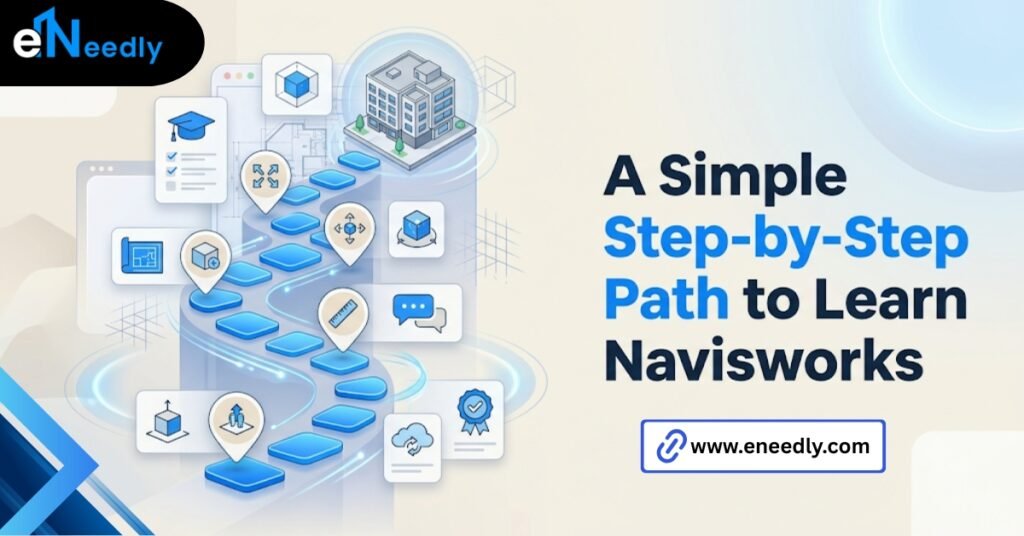
- Install the correct version and open a sample federated model, not your own project yet.
- Spend a full session just navigating. No tools, no clashes, only orbit, pan, walk, and saved viewpoints.
- Append two or three files from a real project and study how the selection tree organizes them.
- Run a single Clash Detective test between two disciplines and read the results carefully.
- Save viewpoints for each clash found and write a short note describing each one.
- Repeat with a third discipline appended, then compare how the clash count and pattern change.
- Try TimeLiner only once the appending and clashing workflow feels routine, not before.
Following that order, most people reach basic competence within a couple of focused weeks. Rushing straight to advanced tools tends to slow that timeline down, not speed it up.
What Happens After the Tutorial Ends
A tutorial gets someone comfortable with the interface. It does not solve what happens when three disciplines are sending updated files every week, and someone has to keep the federated model current.
That gap is where teams usually call in outside help. Not because Navisworks is too hard to learn, but because managing a live coordination workflow across multiple firms is a process problem as much as a software one.
Someone has to own file naming standards, append schedules, and clash resolution tracking, and that role rarely gets assigned formally on smaller projects.
On a project with a single design firm, one person can usually carry that responsibility informally. Once three or four firms are each issuing their own updates on their own schedule, informal ownership breaks down, and clashes get resolved late or missed entirely.
eNeedly has spent more than eight years helping construction and engineering teams set up workflows like this properly.
From file naming standards through to how clash reports actually get resolved and closed out. That is different work than teaching software, and it is usually the part nobody budgets time for.
Common Mistakes Beginners Make in Their First Week
Most first week mistakes are not about pressing the wrong button. They are about skipping a step that seemed optional and was not.
Merging files instead of appending them is one. It destroys traceability and makes later troubleshooting far harder than it needs to be.
Running Clash Detective before agreeing on tolerances with the other disciplines is another common one. A clash flagged at five millimeters means something different to a structural engineer than it does to an MEP contractor.
Not saving viewpoints. Skipping third person mode entirely. Treating Navisworks like a modeling tool instead of a coordination tool.
Each mistake on its own is small. Together, across a first project, they add up to a rougher start than the software actually deserves.
Frequently Asked Questions
Is Navisworks hard to learn for beginners?
The interface is dense at first, but the core workflow- append, navigate, clash, review- is straightforward once practiced. Most of the difficulty comes from skipping steps rather than the software itself being complex.
What is the difference between Navisworks Manage and Navisworks Freedom?
Freedom is free and lets a user view published models but cannot append multiple file formats or run clash detection. Manage is the licensed full version built for active coordination work.
Do I need Revit or AutoCAD to use Navisworks?
No. Navisworks imports files exported from those programs, but it does not require them to be installed to run. It works as a standalone review and coordination environment.
How long does it take to learn Navisworks basics?
Most beginners reach basic working competence in a couple of focused weeks following a structured path. Mastering coordination workflows across a full live project takes longer and depends on team complexity.
Can I open a Navisworks file without a license?
Navisworks Freedom opens published NWD files without a paid license. It cannot open the full range of source formats or run the coordination tools that require Manage.
What file formats does Navisworks import?
Navisworks imports files exported from major AEC software, including DWG, RVT, and IFC formats among others, then converts them into its own format for review.
Is a Navisworks tutorial for beginners available for free online?
Autodesk publishes official learning material covering the basics, and several third-party trainers offer additional free introductory content online.