

Someone in IT pulls the official spec sheet, buys hardware that matches it exactly, and hands out laptops across the whole office without asking who actually needs what.
Three weeks into a real project, the BIM coordinator is staring at a spinning cursor every time they load the federated model.
Navisworks system requirements, as published by Autodesk, describe the minimum hardware needed to install and launch the software. They do not describe what is needed to run a real federated model with multiple disciplines and active clash detection at usable speed.
That gap between installing and performing is where most hardware complaints actually start, and it rarely gets caught before the purchase order is already signed.
Minimum vs Recommended Specs Breakdown
Autodesk publishes two tiers for most of its software, minimum and recommended. Navisworks follows the same pattern, and the recommended tier is the one that matters for real project work.

Minimum specs get the software running. They rarely get a real coordination workflow running well, especially once a model includes structural, mechanical, and electrical disciplines federated together.
| Component | Minimum | Recommended for Real Projects |
| CPU | Multi-core processor, 2.5 GHz+ | Multi-core processor, 3.0 GHz+ |
| RAM | 8 GB | 32 GB or more |
| GPU | DirectX 11 capable, 1 GB VRAM | Dedicated workstation GPU, 4 GB+ VRAM |
| OS | 64-bit Windows 10 or 11 | 64-bit Windows 11 |
| Storage | Standard HDD | SSD, for faster model loading |
The gap between those two columns is not marketing exaggeration. It is the difference between a demo running one small model and a coordinator running four or five discipline models federated together, with clash detection running live in the background.
RAM: Why the Minimum Number Is Misleading
Eight gigabytes sounds workable on paper. It rarely is, once a real federated model gets loaded alongside everything else running on a workstation at the same time.
Federated models hold every discipline’s geometry in memory simultaneously. A single structural model might be manageable at low RAM. Four models stacked together, plus clash test data, plus whatever else is open in the background, adds up fast.
Teams that spec hardware to the published minimum run Navisworks fine in a demo with a single small model. Then they hit real slowdowns the moment a full federated model with four or five disciplines gets loaded for an actual coordination meeting.
32 GB is a reasonable working floor for anyone regularly federating multidiscipline models. Coordinators managing larger commercial or institutional projects often see real benefits beyond that point, too.
There is a practical way to think about this rather than just trusting a round number. Each discipline model loaded into a federated view consumes memory proportional to its geometric detail, not just its file size on disk.
A heavily detailed mechanical model with every duct fitting modeled explicitly consumes far more working memory than a simplified massing model of the same physical size. Clash detection adds another layer on top of that baseline.
Running a clash test against a live federated model temporarily spikes memory use well above what simple viewing requires, since the software is comparing every relevant geometric pair against the active rule set in real time.
A workstation that handles casual model review comfortably can still stall during an actual clash run if RAM headroom was never built in from the start.
GPU and Graphics Requirements
Buyers focus on RAM and CPU when shopping for hardware. Fair enough; those numbers are easy to compare. GPU capability is usually the first thing that visibly bottlenecks during clash detection and visual navigation of a large model.
Navisworks renders complex 3D geometry in real time, and clash detection runs visual overlap checks constantly while a session is active. A weak integrated GPU struggles with both at once, especially as model complexity grows past a few disciplines.
A dedicated workstation GPU, not a gaming card repurposed for the job, handles sustained rendering loads more predictably over long coordination sessions.
Certified drivers matter here too. Uncertified consumer GPU drivers cause more Navisworks stability issues than most IT departments expect. Workstation GPUs are built and validated against professional CAD and BIM workloads specifically.
This is a different testing standard from the one a consumer gaming card goes through. That difference shows up as fewer random crashes during long clash detection runs, not as a dramatic frame rate improvement most users would notice day to day.
IT teams sometimes push back on the added cost of workstation-grade graphics cards, reasonably, since they cost more than consumer equivalents with similar raw specs on paper.
The trade-off is stability during exactly the sessions where a crash costs the most, a live coordination meeting with the whole project team watching the screen.
Signs the GPU is the actual bottleneck
Choppy navigation when orbiting or panning a large federated model. Clash test runs that take noticeably longer than expected given the model size. Visual artifacts or crashes specifically during heavy 3D viewport activity, rather than during simpler tasks like opening a file.
Operating System and Installation: Navisworks System Requirements
Navisworks requires a 64-bit Windows installation. There is no macOS or Linux native version, which surprises teams coming from other design software with broader platform support.

Installation itself is straightforward on supported Windows versions, assuming administrative rights and enough free disk space for both the application and its temporary working files during model processing.
Enterprise IT environments sometimes restrict administrative install permissions by default. That restriction, more than any hardware spec, is the most common installation blocker reported by teams rolling the software out across an office for the first time.
Group policy settings in larger organizations frequently block software installers from making the registry and system file changes Navisworks needs during setup.
IT departments familiar with deploying other Autodesk products usually know to whitelist the installer in advance, but teams installing Navisworks as their first Autodesk product often discover this restriction only after the install already failed once.
Temporary file space also matters more than most installation guides mention. Model processing and clash test caching both use local disk space actively during a working session, separate from the installed application size itself.
A machine with the application installed on a nearly full drive can run into slowdowns that look like a hardware performance issue but are actually a storage space problem.
Navisworks Manage System Requirements 2026
Each annual release tends to nudge the recommended specs upward slightly, following the same trajectory as the rest of the Autodesk AEC Collection. The 2026 release is no exception to that pattern.
Hardware bought two or three product cycles ago against an older version’s minimum specs is a common source of performance complaints after an upgrade. The software installs fine on older hardware.
It rarely runs a real federated model comfortably once several release cycles have passed. Teams planning an upgrade cycle benefit from checking current-year specs against actual hardware age, not just against whether the install technically completes without error.
A useful check before any annual upgrade is simply asking how the previous version actually performed on current hardware, not just whether it worked.
If clash detection already felt sluggish under the prior release, a newer version with slightly heavier processing demands is unlikely to feel faster on the same unchanged machine.
Best PC Setup for Navisworks system requirements
There is no single best PC for Navisworks, because the right setup depends heavily on the role. A BIM coordinator running daily clash tests across five discipline models needs different hardware than someone opening the free Freedom viewer twice a month for a review meeting.
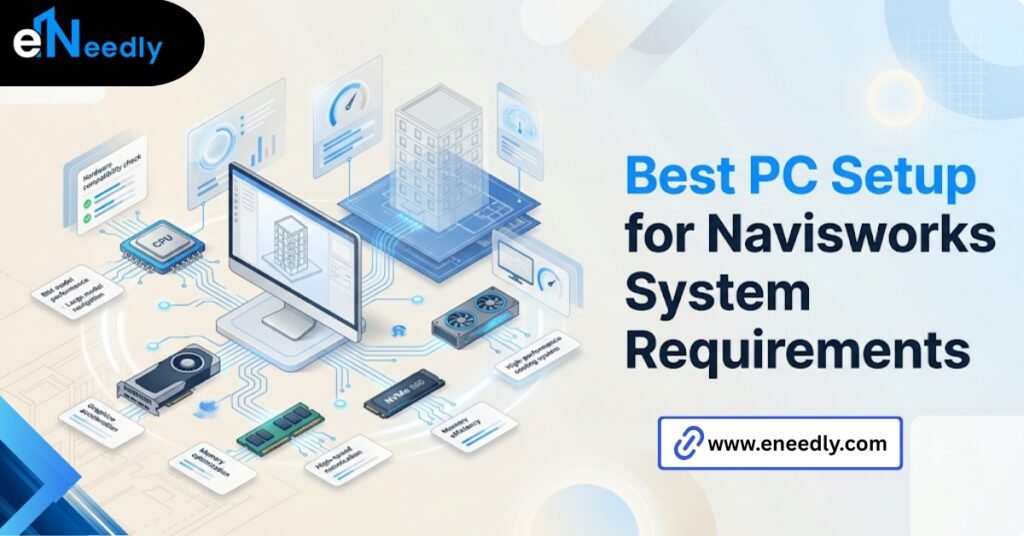
For active coordination work: a multi-core processor well above minimum clock speed, 32 GB or more RAM, a dedicated workstation GPU with certified drivers, and an SSD for faster model loading and clash test processing.
For lighter review work through Freedom: a standard business laptop handles it without needing workstation-grade components at all.
Between those two extremes sits a middle group worth naming separately. Scheduling leads running 4D sequencing in Simulate, without heavy clash detection responsibility, can often work comfortably on hardware a step below full coordination grade.
Sequencing playback is less demanding than live clash testing across a fully federated multidiscipline model, so the GPU and RAM headroom that a clash detection role truly needs is somewhat negotiable here.
Laptop versus desktop is a real consideration too, not just a personal preference question. Mobile workstation laptops with proper cooling can handle coordination work adequately, but sustained clash detection sessions generate real heat.
And thermal throttling on an undersized laptop chassis quietly degrades performance in ways that are hard to diagnose without knowing to look for it.
Where hardware stops helping
Higher-spec hardware speeds up model loading and navigation. It does nothing to fix a poorly organized or badly federated model.
A federated model built from inconsistent origins or messy naming conventions runs slowly on any hardware, and throwing better components at it only goes so far before the real problem, which is model discipline, still needs solving directly.
How eNeedly Helps Teams Avoid Hardware Bottlenecks
Hardware problems tend to surface after launch, not before, which is exactly when they are most disruptive to a live project. A coordination meeting stalls because the model won’t load smoothly, and by then the team is already depending on the software daily.
eNeedly has spent 8+ years helping businesses evaluate not just which software to buy, but what it actually takes to run that software well once it is part of daily workflow.
For Navisworks specifically, that includes matching hardware recommendations to actual project roles rather than a single office-wide laptop standard.
IT departments often buy one standard laptop configuration for the whole office, without separating the BIM coordination roles that actually need workstation-grade hardware from roles that only need the Freedom viewer.
eNeedly helps sort that distinction out before the purchase order goes in, not after the first slow coordination meeting. Published system requirements are written to describe what will install and technically launch, not what will perform acceptably on a real project.
Treating them as a performance guarantee is the mistake that causes the most complaints, and it is easy to avoid with the right assessment upfront.
A more deliberate approach treats system requirements as a starting conversation, not a final answer, and matches actual hardware to the coordination role someone holds on a project rather than to a single office-wide standard.
Frequently Asked Questions
What are the minimum system requirements for Navisworks?
Autodesk lists a multicore processor, 8 GB RAM, a DirectX 11-capable GPU, and 64-bit Windows as the minimum. These specs allow installation and basic use, not smooth performance on a real federated model.
How much RAM does Navisworks actually need?
For real multidisciplinary coordination work, 32 GB or more is a reasonable floor. The published 8 GB minimum only supports light single model use.
Does Navisworks run on Mac or Linux?
No. Navisworks requires 64-bit Windows. There is no native macOS or Linux version available.
What GPU is recommended for Navisworks?
A dedicated workstation GPU with certified drivers and at least 4 GB of VRAM handles clash detection and large model navigation more reliably than integrated or consumer gaming graphics.
Do system requirements change between Navisworks versions?
Yes. Recommended specs typically increase slightly with each annual release, following the broader Autodesk AEC Collection upgrade pattern.
Can an old laptop run Navisworks Manage?
It might install and launch. It is unlikely to run a real federated model with active clash detection at a usable speed, especially on hardware several release cycles old.
Does better hardware fix a slow Navisworks project?
Only partly. Hardware speeds up loading and navigation, but a poorly federated model with messy naming and inconsistent origins stays slow regardless of the workstation running it.
Is a laptop or desktop better for running Navisworks?
Desktops generally handle sustained clash detection sessions better due to superior cooling. A mobile workstation laptop can work, but thermal throttling on an undersized chassis can quietly reduce performance during long sessions.