
Quick Answer
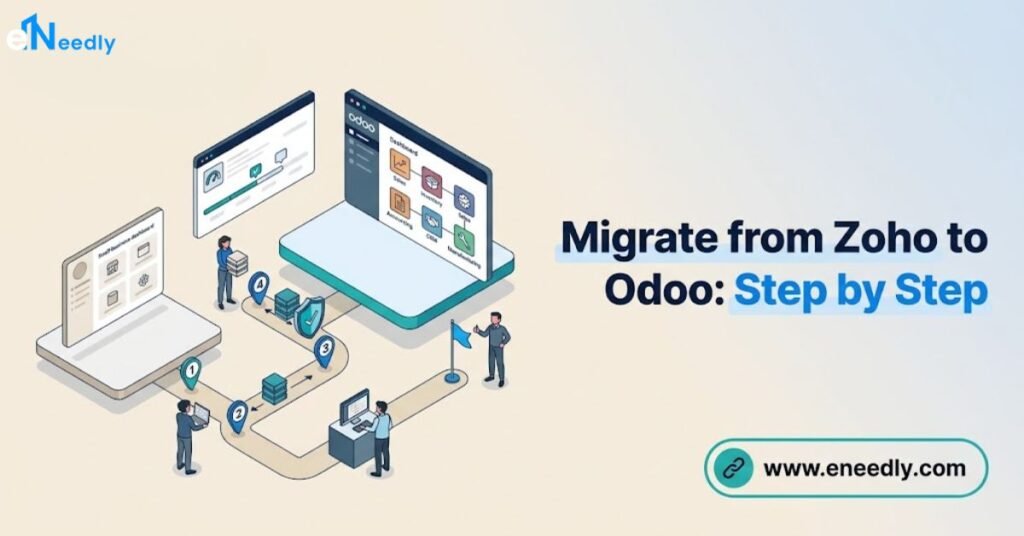
A Zoho to odoo migration maps Zoho’s suite of separate apps, CRM, Books, Inventory, Desk, into Odoo’s integrated modules, typically completing in 4 to 10 weeks depending on how many Zoho apps are in use.
A zoho book to odoo migration specifically involves exporting the chart of accounts, contacts, and transaction history, then mapping them into Odoo Accounting’s structure. Zoho’s data is generally simpler to map than SAP’s, since both platforms target similar small and mid-market use cases with comparable data structures.
Introduction
Businesses that started with Zoho often outgrow it the same way: individual apps work fine, but the connections between them start to feel like duct tape rather than a genuine system.
Zoho CRM here, Zoho Books there, Zoho Desk somewhere else, each with its own quirks and its own view of the same customer.
This guide walks through exactly how to migrate zoho to odoo, covering export, mapping, and import for the most commonly used Zoho apps. It builds on the general framework in Odoo migration process and the data discipline in Odoo data migration services, applied specifically to this transition.
Why Businesses Migrate from Zoho to Odoo
Zoho‘s suite covers many business functions well individually, but each app was built somewhat independently, which means data does not always flow between them as smoothly as a business expects.
A customer record in Zoho CRM does not automatically share full context with the same customer’s invoice history in Zoho Books.
Odoo’s apps share a single underlying data model, so a customer, product, or transaction created in one app is immediately visible and usable across every other app without separate synchronization.
This integration is the primary reason businesses moving from Zoho’s app suite choose Odoo specifically, rather than another point solution.
Businesses running several Zoho apps simultaneously, CRM, Books, Inventory, and Desk, often find the combined subscription cost approaches or exceeds what a single integrated Odoo deployment costs, adding a financial motivation alongside the integration benefit.
What Data Needs to Migrate from Zoho
Migration scope depends on which Zoho apps a business actually uses. The table below shows the most common Zoho apps and their general Odoo equivalents.
| Zoho App | Typical Odoo Equivalent | What Migrates |
| Zoho CRM | CRM | Leads, contacts, pipeline stages, deal history |
| Zoho Books | Accounting | Chart of accounts, invoices, bills, contacts |
| Zoho Inventory | Inventory | Products, stock levels, warehouses |
| Zoho Desk | Helpdesk | Tickets, customer support history |
| Zoho People | Employees/HR | Employee records, basic HR data |
Not every business runs every Zoho app, so scope the migration to only the apps genuinely in active use. Migrating data from an abandoned or rarely used Zoho app wastes effort on records that add little value once in Odoo.
How to Export Data from Zoho
Zoho apps generally support CSV export through their standard settings or reports interface, which is the most common starting point for migration.
Each app exports its own data type separately, so a business running multiple Zoho apps performs multiple export operations.
Zoho Books specifically allows exporting the chart of accounts, contacts, invoices, and bills as separate CSV files through its data export settings.
Confirm the export includes all custom fields your business has added within Zoho, since these sometimes require a separate export step or a different report configuration to capture fully.
Zoho CRM exports typically cover leads, contacts, and deals as separate data types, each with its own field structure that needs mapping into Odoo’s CRM model.
Review each export file for completeness against what you see in the Zoho interface before proceeding to mapping.

Mapping Zoho Data to Odoo
Mapping Zoho Books to Odoo Accounting
Mapping the Zoho Books chart of accounts into Odoo Accounting requires reviewing account types and categories, since the two platforms organize accounts somewhat differently even though both follow standard accounting principles. Confirm each Zoho account category maps to the correct Odoo account type before importing, since a wrong mapping here affects every transaction that references it.
Contacts in Zoho Books typically separate customers and vendors more distinctly than Odoo, which uses a unified Contacts model where a single record can serve as both customer and vendor.
Consolidate any duplicate contact records that exist separately as a customer and vendor in Zoho into a single Odoo contact where they represent the same business entity.
Invoice and bill history should generally focus on open, unpaid documents plus current fiscal year closed transactions, rather than migrating every historical document ever created.
This follows the same historical data principle that applies across most ERP migrations keep older records accessible in Zoho as an archive rather than migrating everything into the live Odoo system.
Mapping Zoho CRM to Odoo CRM
Zoho CRM’s lead and deal stages need mapping to Odoo CRM’s pipeline stages, and this is a good opportunity to review whether the existing stage structure still reflects the actual sales process or needs adjustment during the move.
A direct one-to-one stage mapping is not always the best choice if the underlying sales process has evolved since the stages were first set up in Zoho.
Custom fields in Zoho CRM, such as industry-specific lead qualification criteria, need individual mapping to either existing Odoo fields or new custom fields created through Odoo Studio.
Document this mapping clearly, since it affects how sales data displays and reports once migration completes.
Mapping Zoho Inventory to Odoo Inventory
Product records from Zoho Inventory generally map in a fairly straightforward way to Odoo products, though warehouse and location structures may need reconfiguration if Zoho’s setup does not directly mirror how Odoo organizes multi-location inventory.
Stock levels should be captured as a point-in-time snapshot at the moment of migration, then reconciled immediately after import to confirm accuracy.
Importing Data into Odoo
Odoo’s built-in import tool handles most Zoho CSV exports well for moderate data volumes, supporting field mapping directly within the import interface.
This covers most small and mid-market migration needs without requiring custom development.
Import in the correct order contacts and products before any transactions that reference them, since Odoo’s relational data model requires parent records to exist before child records can be linked.
Attempting to import invoices before the corresponding contacts exist will fail or create incomplete records.
Run a small test import first, using a limited sample of records, before importing the full dataset. This catches mapping errors early, when they affect a handful of records rather than the entire migration.
Migrating Support Data: Zoho Desk to Odoo Helpdesk
Migrating support from Zoho to Odoo specifically, moving from Zoho Desk to Odoo’s Helpdesk app, involves exporting ticket history, customer associations, and any custom ticket fields your support team relies on.
This migration matters particularly for businesses where historical ticket context informs ongoing customer relationships.
Transitioning support from Zoho to Odoo works best when closed tickets older than a defined window stay archived in Zoho, while open tickets and a recent window of closed ticket history migrate into Odoo Helpdesk.
This keeps the live support system focused on genuinely relevant history without excessive migration scope for tickets nobody will reference again.
Support agents should be trained on Odoo Helpdesk’s interface before cutover, since even a well-mapped data migration can create confusion if the team is unfamiliar with where familiar information now lives.
A short training session focused specifically on common daily tasks reduces this friction significantly.
Validation After Migration
Validation should confirm record counts match between Zoho and Odoo for each migrated data type, followed by spot-checking individual records for field accuracy.
Financial data from Zoho Books deserves the same reconciliation rigor as any ERP migration: verify account balances and outstanding invoice totals match exactly between systems.
CRM pipeline data should be reviewed by the actual sales team, confirming that deals appear in the correct stage and that historical deal context transferred accurately.
This user-level validation catches contextual errors that a purely technical data check might miss.
Common Mistakes in Zoho to Odoo Migration
Migrating every historical record instead of a defined window. Years of closed invoices, resolved tickets, and won or lost deals add migration complexity without proportional value once the source system stays accessible as an archive. Migrate open and recent records, and keep older history in Zoho for reference.
Not consolidating duplicate customer and vendor contacts. Zoho Books’ separate customer and vendor structure can create duplicate Odoo contacts if not deliberately consolidated during mapping. Review and merge these before import, not after.
Skipping a small test import before the full migration. Importing the entire dataset at once without a test run risks discovering mapping errors only after they’ve affected every record. Test with a small sample first and verify results before proceeding to full import.
Treating stage mapping as purely mechanical. Directly copying Zoho’s existing pipeline stages without reviewing whether they still reflect the actual sales process misses an opportunity to improve the workflow during migration. Take this chance to validate the stage structure with the sales team.
Not training support staff before Helpdesk cutover. A well-migrated support data set still creates confusion if agents don’t know how to navigate Odoo Helpdesk’s interface. Schedule brief, task-focused training before going live.
Who Should Migrate from Zoho to Odoo
Businesses running multiple disconnected Zoho apps, CRM, Books, Inventory, and Desk separately, are the clearest candidates for this migration, since Odoo’s integrated structure directly solves the synchronization friction between separate Zoho apps.
This group typically sees the most immediate operational benefit from consolidating into one system.
Businesses using only a single Zoho app, such as Zoho Books alone for basic accounting, face a lower-urgency decision, since the integration benefit matters less without multiple apps to connect.
The migration may still be worthwhile for other reasons, such as Odoo’s broader feature set within accounting itself, but the primary integration driver applies less strongly.
This migration path fits less well for businesses fully satisfied with Zoho’s current functionality and cost, where no clear operational or financial motivation exists to justify migration effort and disruption.
Frequently Asked Questions
How long does a Zoho to Odoo migration take?
Most migrations take 4 to 10 weeks depending on how many Zoho apps are in use and how much historical data needs review. A single-app migration, such as Zoho Books alone, typically completes faster than a full multi-app transition.
Can I migrate Zoho Books data directly into Odoo Accounting?
Yes, through CSV export from Zoho Books and import into Odoo, with careful chart of accounts and contact mapping in between. Financial data should be reconciled carefully after import to confirm accuracy.
Should I migrate all my Zoho CRM deal history?
Most businesses migrate open deals and a recent window of closed deal history, while older closed deals can stay archived in Zoho for reference. This reduces migration scope without losing access to genuinely useful historical context.
What happens to Zoho Desk tickets during migration?
Open tickets and a recent window of closed ticket history typically migrate into Odoo Helpdesk, while older closed tickets can remain archived in Zoho. Support agents should be trained on Odoo Helpdesk before cutover.
Is Zoho to Odoo migration easier than SAP to Odoo?
Generally yes, since both Zoho and Odoo target similar small and mid-market use cases with more comparable data structures than SAP’s enterprise-focused architecture. This typically makes the mapping and migration work more straightforward.
Do I need custom development to migrate from Zoho to Odoo?
Most migrations complete using Odoo’s built-in import tools without custom development, particularly for standard CRM, Books, and Inventory data. Complex custom fields or unusual Zoho configurations may occasionally require additional mapping work or Studio configuration.
Key Takeaways
Migrating from Zoho to Odoo succeeds through careful export, deliberate mapping, and small-batch testing before full import, following the same discipline that applies to any ERP migration.
Zoho’s data structures generally map more directly to Odoo than more complex enterprise platforms, making this a comparatively manageable migration for most small and mid-market businesses.
Consolidating duplicate contacts, reviewing pipeline stages rather than copying them mechanically, and training support staff before Helpdesk cutover all protect against the friction that catches businesses off guard mid-migration.
Validate financial data with the same rigor as any accounting migration, regardless of how straightforward Zoho’s export process feels.
Export a small test batch from your most-used Zoho app and complete a trial import before scheduling your full migration.