
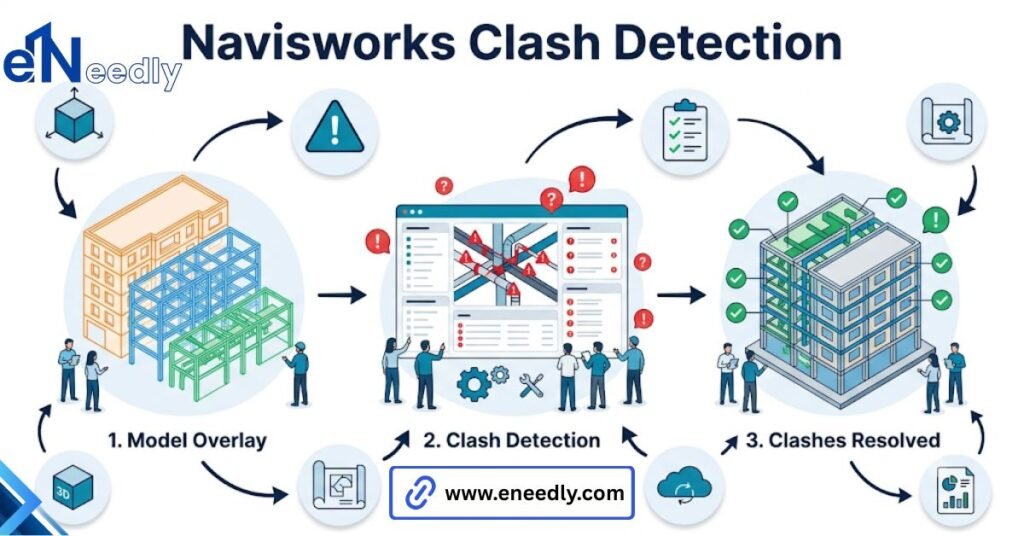
Quick answer: Navisworks clash detection compares 3D models from different disciplines and flags every point where geometry overlaps or breaks a clearance rule. It runs inside the Clash Detective module once models are aggregated and selection sets are scoped.
Teams use it to catch conflicts on screen instead of on site. A sprinkler line and a cable tray both want the same six inches above a hallway ceiling. Nobody notices until an installer is standing there with two crews and one gap left to fill.
Navisworks clash detection exists to catch exactly that, weeks or months before it becomes a site problem. This guide covers what it checks, how to run it correctly, and why so many teams get results they don’t trust.
What Clash Detection in Navisworks Actually Checks
Navisworks clash detection compares two or more sets of aggregated 3D geometry. It flags every point where they physically intersect or violate a defined clearance distance.
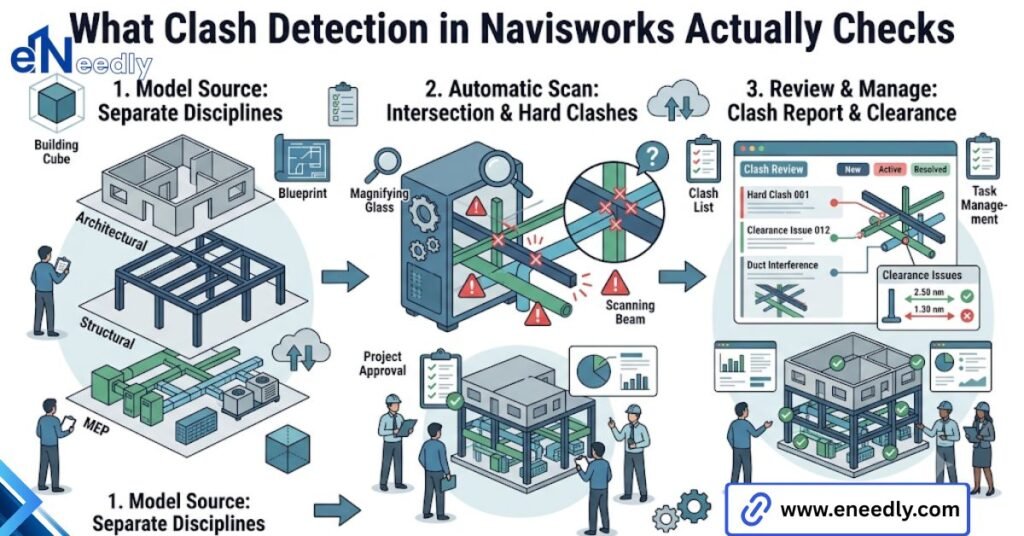
The comparison runs inside a dedicated module called Clash Detective, built directly into Navisworks Manage. The comparison itself is geometric, not intelligent.
The software doesn’t know a duct shouldn’t run through a beam. It only knows two solids occupy the same space, or fall closer together than a rule allows.
Clash Detective checks selection set against selection set. Structural against mechanical. Mechanical against electrical. Every pairing gets its own test, run with its own tolerance and its own rules, and each test produces its own report.
Test setup decides the outcome more than the engine does. Clash detection Navisworks users either trust or dismiss, depending almost entirely on how that setup was handled beforehand.
Before You Run a Test: Setup That Determines the Result
Here’s the part that gets skipped. The clash test itself takes seconds to run. The setup that determines whether the results are usable takes considerably longer, and most teams underinvest in it.
Selection Sets
A selection set defines exactly which geometry gets tested against which. Leave this loose: structural everything against mechanical everything, and the test compares objects that were never going to clash in reality.
A team runs its first test with every set left wide open. The report comes back with thousands of flagged results. The team concludes the software doesn’t work. It wasn’t the software. It was the scope.
A well-built selection set groups geometry by discipline, level, and system. Structural columns on level three tested against mechanical ductwork on level three, rather than against the entire building at once.
Narrower sets mean smaller, faster tests. Reports end up mapping to how the coordination meeting is actually organized, discipline by discipline, level by level. Naming convention matters here too, more than it seems like it should.
A selection set called “Level 3 Mechanical Ductwork” tells the next person exactly what they’re looking at. One called “Set 4” doesn’t, and six months into a project nobody remembers what it was supposed to contain.
Coordinate Alignment Across Disciplines
Every model brought into the aggregation needs to share the same origin point and orientation. Misalignment doesn’t just hide real clashes; it invents false ones between geometry that’s actually meters apart in reality.
Checking that alignment before the first test runs is a five-minute step. Skipping it costs a full coordination meeting later, spent debugging why half the report looks wrong.
Where eNeedly Fits: Getting the Setup Right the First Time
Most of the frustration teams report with this process traces back to the setup stage, not the detection engine. That’s usually where eNeedly gets pulled in. Building a scoped selection set library and confirming shared coordinates before the first import are not glamorous tasks.
Assigning one person to own the master test settings isn’t either. They’re also the difference between a clash report the team trusts and one they quietly ignore.
With 8+ years of hands-on experience across construction and AEC digital workflows, eNeedly helps teams get this layer right before the first test runs. Not after the third one produces a report nobody believes.
How to Run Clash Detection in Navisworks Step by Step
Once selection sets and coordinates are confirmed, the test itself follows a fixed sequence.
- Open Clash Detective from the Home tab inside Navisworks Manage.
- Create a new test and name it clearly, by discipline pair and date, not a generic label.
- Assign the first selection set to the left side and the second to the right.
- Choose a clash type: hard, clearance, or duplicate.
- Set the tolerance distance for clearance tests, in inches or millimeters depending on project standard.
- Run the test and review the results list as it populates.
- Save the test and export or publish the report for the coordination meeting.
The sequence rarely changes project to project. What changes is step five, the tolerance. That single number decides how noisy or how useful the entire report turns out to be.
Reading a Navisworks Clash Detective Report
A clash report lists every flagged interference as an individual row, grouped by the test that produced it. Each row shows the two objects involved, their selection sets, a status field, and a distance value for clearance clashes.
Status matters more than most first-time users realize. New, active, reviewed, approved, resolved: each clash carries a status tracking where it sits in the coordination process, not just whether it exists.
Grouping options collapse duplicate or related clashes into a single line. That step alone cuts report length dramatically on large federated models. Skipping grouping is a common reason reports look far worse than the underlying coordination problem actually is.
Reports export in a few formats depending on who needs to see them. An HTML report works for a quick visual walkthrough in a meeting.
An XML or CSV export feeds into project management or issue tracking software, useful when a team wants clashes logged alongside other project tasks rather than living only inside Navisworks.
Some teams push exports into a separate issue tracker entirely, treating each clash like a punch list item with its own comment thread. Others keep everything inside Navisworks and use the built-in status field as the only tracking layer.
Neither approach is wrong. The choice usually comes down to how many people outside the modeling team need visibility into open items. Screenshots attached to each clash row help too, more than they get credit for.
A viewpoint captured at the moment a clash is flagged saves the next reviewer from having to relocate the exact camera angle that made the conflict visible.
Setting Clash Rules and Tolerances
Tolerance is the single number with the most influence over how a clash test behaves. A tight clearance rule catches more of what actually causes field problems: insulation thickness, access panel swing, maintenance clearance around equipment.
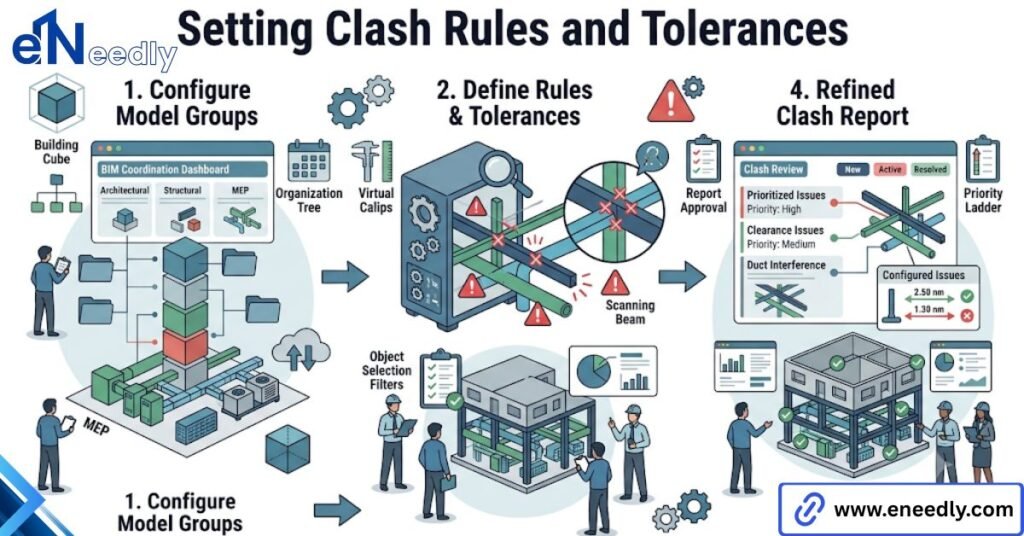
Tighter tolerance also multiplies the total clash count. That’s the trade-off nobody puts on a feature list. More real-world problems caught means more noise in every report.
The team has to decide upfront which one it’s optimizing for. Rules can also exclude known acceptable overlaps, like a sleeve intentionally penetrating a wall. Building that exclusion list early keeps later reports focused on things that actually need a decision.
There’s no universal tolerance value that works across every project type. A hospital with tight ceiling plenums and heavy MEP density typically runs tighter clearance rules than a warehouse with open structure.
The right starting point comes from the building type and the trades involved, not a default setting left over from a template.
Hard Clashes vs Clearance Clashes vs Duplicate Clashes
A hard clash is solid geometry physically overlapping solid geometry, a pipe through a beam. Unambiguous, and rarely disputed once flagged. A clearance clash flags objects within a set distance without touching, the insulation and access panel category mentioned above.
It requires a tolerance value and produces more judgment calls than a hard clash does. A duplicate clash happens when the same geometric conflict gets picked up more than once across overlapping selection sets. It isn’t a real-world problem.
It’s a setup artifact, and cleaning selection set overlap removes it from future reports. Sorting these three at a glance saves real time in a meeting. Hard clashes go to the top. Clearance flags get treated as judgment calls, not emergencies.
Duplicates get dismissed without discussion. Sorting is a team skill, not a software feature. Navisworks shows the classification. Whether the team actually uses it comes down to how the meeting gets run.
Common Reasons Clash Detection Returns Bad Results
Four habits explain most of the complaints teams have about this tool, and none of them sit inside the software. The first is loose selection sets, already covered above, and still the single biggest cause of an unusable first report.
The second is treating every flagged clash as equally urgent and working through the list in the order Navisworks presents it. A hard clash blocking structural steel installation next week is not the same priority as a soft clearance flag on equipment nobody touches for a year.
Triage by consequence, not by list order. The third is letting different people run the master test with slightly different tolerances on different days. Reports stop being comparable week to week, and meetings spend time reconciling numbers instead of resolving problems.
The fourth is nobody owning the master test settings at all. Team members run the same weekly test with different scopes or an outdated set someone forgot to update. Fixing that fourth habit is simple in principle and rarely done in practice. One person owns the master test file.
Everyone else views results; nobody duplicates or modifies the settings independently. Here’s the blunt version. The detection engine is not where projects lose time on this. Rule setup and triage discipline are, and no amount of software fluency substitutes for either one.
Assigning and Closing Out Clashes
A flagged clash without an owner sits in the report indefinitely. Assignment is not optional overhead. It’s the step that converts a list of geometric conflicts into an actual coordination process.
Each clash needs a named owner and a target date at the moment it’s flagged, not sometime later in the meeting. Status gets updated as work progresses, from new through reviewed to resolved.
Unresolved items carry forward visibly rather than disappearing into a stale report nobody rechecks. Closing a clash properly means more than changing its status.
The actual model has to get updated back in the source authoring software, and the fix has to carry through to the next federated aggregation. A clash marked resolved that never got fixed upstream reappears in the following test.
That reappearance is usually what finally breaks a team’s trust in the process. A short weekly cadence works better than a long monthly one for this reason.
Small batches get assigned and closed before they pile up into something a meeting can’t realistically work through in an hour.
Teams already using Navisworks Manage software as their coordination platform get the most value out of clash detection when closeout discipline runs on the same schedule as the test itself.
Frequently Asked Questions
What is Clash Detective in Navisworks?
Clash Detective is the module inside Navisworks Manage that runs clash detection. It compares selection sets against each other, applies tolerance rules, and generates the report teams review in coordination meetings.
How many clashes are normal in a first test?
There’s no fixed normal number; it depends entirely on model complexity and how tightly the selection sets were scoped. A poorly scoped first test commonly returns thousands of results, most of them irrelevant.
What is the difference between a hard clash and a clearance clash?
A hard clash is solid geometry physically overlapping. A clearance clash flags objects within a defined distance without touching, used for access, maintenance, and insulation requirements.
Can Navisworks run clash detection automatically on a schedule?
Not natively on its own without additional automation tools or scripting. Most teams run tests manually ahead of scheduled coordination meetings.
Why does my clash report show thousands of results?
Almost always loose selection sets comparing far more geometry than necessary, or unresolved coordinate misalignment between disciplines. Both are setup problems, not detection engine problems.
Do I need Navisworks Manage to run clash detection, or does Simulate work?
Clash detection requires Navisworks Manage. Simulate includes 4D sequencing and quantification but does not include the Clash Detective module.
What causes duplicate clashes in a report?
Overlapping selection sets that test the same geometry pairing more than once. Tightening selection set scope removes duplicates from future test runs.