
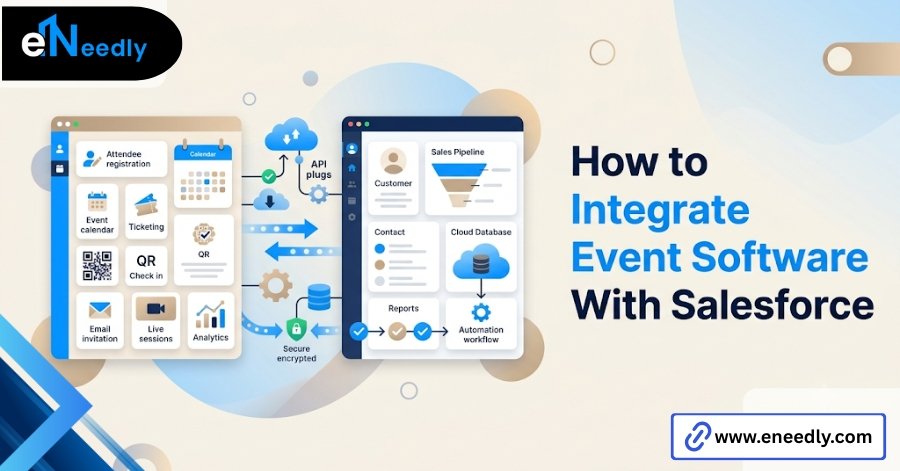
Quick answer: Integrating event software with Salesforce means connecting the two systems so registration and attendee data sync automatically instead of requiring manual export and upload.
It works through an API connection that maps fields between the two platforms. Businesses do this to keep sales teams working with current lead data instead of stale exports.
The one question everyone asks first: where do I click to connect to Salesforce?
That’s the wrong first question, even though it’s the one almost everyone starts with. Learning how to integrate event software with Salesforce starts well before that click, in decisions that have nothing to do with either platform’s interface.
There is a button, usually in the event platform’s settings menu, and clicking it starts an authentication flow that takes a few minutes.
The setup wizard isn’t where this goes wrong. What breaks the integration happens earlier, in decisions nobody made explicitly before anyone touched a settings page.
Skip that part, and the wizard will still finish. It’ll report a successful connection. Then three weeks later, someone finds duplicate contacts or a field that was never mapped, and the fix costs far more time than the setup would have.
The rest of this walks through that setup in order, starting with the decisions that need to happen before any button gets clicked at all.
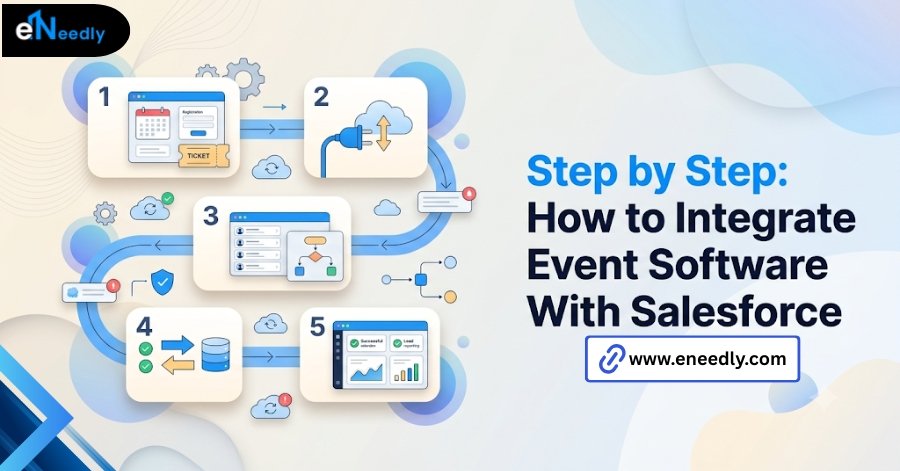
Step by step: how to integrate event software with Salesforce
Two conversations need to happen first, and neither involves logging into either platform. Skipping them is the single biggest reason integrations need to be redone within the first few months.
The first is about ownership. Who on your team understands the Salesforce data model well enough to know what a lead versus a contact versus a campaign member actually means in your org’s setup?
That person needs to be part of this from the start, not brought in after something breaks. The second is about expectations. What does the event team actually need from this integration?
Real-time updates during a live event are a different requirement from an overnight sync for a quarterly newsletter signup, and the setup differs based on which one you actually need.
Step 1: Decide which system is the source of truth
Most teams jump straight to connecting the API before deciding which system should win when a record conflicts, and that decision made after the fact almost always means undoing and redoing part of the integration.
Here’s the conflict in plain terms. Someone registers for an event with a slightly different email than the one already in Salesforce. Does the sync create a duplicate, update the existing record, or flag it for manual review?
Every integration handles this differently by default, and the default is rarely the right answer for your specific setup. Decide this explicitly, in writing, before configuring anything.
Write it down somewhere your team can reference later. This decision gets forgotten fast once the integration is running smoothly, and it resurfaces exactly when a conflict actually happens.
A shared document or even a pinned message in your team’s usual tool works fine. What matters is that the decision exists somewhere outside one person’s memory.
The same document should note who made the call and why, briefly. If sales and events disagree later about how a conflict was handled, that written reasoning is what settles it instead of two people arguing from memory.
Step 2: Map your fields before you connect anything
Buyers assume “integration” means every field syncs automatically, when in reality only a handful of standard fields map by default and everything else needs manual configuration. Name, email, and company usually map cleanly out of the box. Almost nothing else does.
Standard fields versus custom fields
Standard fields exist in both systems by default and rarely need explanation. Custom fields, like a lead score, a specific campaign tag, or an event-specific attribute your sales team relies on, need to be mapped manually, one at a time.
This step gets skipped more often than any other in the setup process. It’s tedious, it doesn’t show up in a demo, and it’s exactly the part that determines whether your sales team gets useful data or a bare contact record.
A concrete example makes this clearer. A lead score custom field might exist in Salesforce but have no equivalent field in the event platform at all, which means it has to be calculated separately or dropped from the sync entirely.
Build a simple spreadsheet before you start clicking through the mapping screen. List every field your sales team actually uses, then confirm each one has a home on the event platform side before assuming it’ll sync.
This spreadsheet becomes useful again later, too. When someone eventually asks why a field isn’t syncing, having a documented list of what was supposed to map, and where, cuts diagnosis time from hours to minutes.
Step 3: Connect to the API and authenticate
This is the part that actually resembles a technical integration, and it’s usually the fastest step once the first two are done. Most platforms use OAuth authentication, meaning you log into Salesforce directly through the event platform’s interface rather than entering credentials manually.
Permissions matter here more than most guides mention. The Salesforce user account used to authorize this connection needs the right access level, not full admin access by default, and not a restricted user account that can’t see the objects the integration needs to write to.
Getting this wrong produces confusing symptoms rather than a clear error. A field might sync for some records and silently fail for others, depending on which objects the connected account can actually see. That inconsistency is harder to diagnose than an outright failure.
Whoever sets this up should use a dedicated integration user account rather than a personal login. A personal account tied to one employee creates a fragile dependency if that person leaves or changes roles later.
Rate limits are worth checking too, particularly for larger events. Salesforce enforces API call limits per org, and a high-volume event pushing thousands of records through in a short window can hit that ceiling if nobody planned for it ahead of time.
Step 4: Test the sync with a small batch before going live
The obvious but skipped step is testing the integration with a small batch of test records before the first live event, and it’s the fastest way to catch a broken field mapping before it corrupts real data.
What to check in the test batch
Register five or six test contacts with deliberately messy data. Include one with an email that already exists in Salesforce, one with missing optional fields, and one with a name that includes an accent character or apostrophe.
Include at least one test record with a value in a custom field, not just the standard ones. Standard field mapping usually works on the first try. Custom field mapping is where the actual failures tend to show up.
Then check Salesforce directly. Did each field land where it should? Did the existing contact update correctly instead of duplicating? Did anything silently fail without an error message anywhere?
That last case is the dangerous one. A loud failure gets noticed. A silent one sits unnoticed until someone asks why a specific lead never showed up in the pipeline.
Run this test at least a week before the first live event, not the day before. That leaves enough time to fix whatever the test batch reveals without scrambling under a deadline.
How to connect event management software to Salesforce without a developer
Most mainstream event platforms now offer native Salesforce connectors that don’t require custom code, built specifically so a marketing operations person can configure the mapping without engineering support.
Vendors don’t advertise that real-time sync setups usually require more technical configuration, sometimes middleware, while batch sync is easier to set up but creates a lag that undercuts the reason most teams wanted the integration in the first place.
If your team has no developer resources available, batch sync through a native connector is usually the realistic starting point. Real-time sync, when it’s genuinely needed, is where bringing in outside technical help tends to pay for itself.
That documentation usually lags behind the platform’s actual current field list, though. Confirm the mapping against what’s live in your Salesforce org directly, not just against what the guide says should be there.
When to bring in help instead of doing it yourself
Some setups genuinely don’t need outside help. A small team with a mainstream CRM, a mainstream event platform, and modest customization needs can usually handle this with the native connector and a few hours of careful field mapping.
eNeedly has spent 8+ years helping businesses through the setups that don’t fit that description: custom field structures, multiple event platforms feeding one Salesforce org, or real-time sync requirements the native connector can’t fully support on its own.
What actually matters in this setup is less about the specific clicks in either platform’s UI and more about someone on the team understanding both systems’ data models well enough to catch a mismatch before it happens.
That’s often the gap eNeedly fills, not writing the integration from scratch but making sure the data model decisions get made the first time correctly.
For a broader look at how this fits together, our pillar guide on event management software Salesforce integration covers the patterns on which this article’s steps are built.
What breaks most often after setup
Integrations rarely fail at launch. They fail weeks or months later, when something about the event program changes and nobody updates the integration to match.
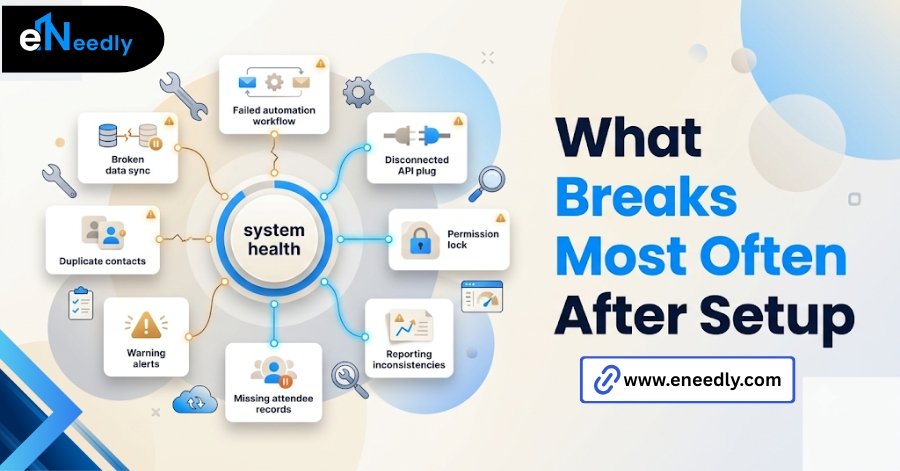
A new custom field gets added in Salesforce for a new campaign type, and nobody maps it on the event platform side. Data for that field simply doesn’t sync silently until someone notices a report is missing information.
Staff turnover causes a similar problem. The person who understood the field mapping left, and the documentation that would have explained it to their replacement was never written down.
An integration changelog helps here, even a short one. A running log of what was mapped, when, and by whom turns a guessing game into something a new hire can actually read.
The fix for both is the same. Document the mapping decisions when you make them, not after someone asks why something isn’t working anymore.
Set a recurring reminder, even a simple quarterly one, to review the field mapping against whatever’s changed in either system since the last check. That small habit catches most of this before it becomes a real problem.
Frequently Asked Questions
How long does it take to integrate event software with Salesforce?
Basic setups with a native connector often take a few hours, while custom field mapping or middleware setups can take days. The time spent deciding ownership and field mapping upfront matters more than the technical connection itself.
Do I need a developer to connect my event platform to Salesforce?
Not for basic setups using a native connector, but complex field mapping, custom objects, or real-time sync requirements often benefit from technical support. Most mainstream platforms are built for basic, non-technical configuration.
What happens if a contact already exists in Salesforce when someone registers for an event?
This depends on how the sync is configured to handle matching records, and the default behavior varies by platform. Decide in advance whether existing records get updated, duplicated, or flagged for review.
Can I sync custom Salesforce fields with my event platform?
Yes, but custom fields almost always require manual mapping rather than syncing automatically like standard fields do. Build a list of every field you need before starting the setup process.
Is real-time sync necessary for event data going into Salesforce?
It depends on how quickly your sales team needs to act on new leads. A live trade show usually benefits from real-time sync, while a quarterly newsletter signup rarely needs it.
How do I test a Salesforce integration before a real event?
Register a small batch of test contacts with intentionally messy data and confirm each field maps correctly in Salesforce. This step catches broken mappings before they affect real registrant data.
Why did my Salesforce integration stop working after it initially worked fine?
This usually happens after a change on either system’s side, a new custom field, an updated permission set, or a staff change that nobody updated the integration to reflect. Documenting the original setup makes this easier to diagnose later.